
How to Find Stale Feeds with the Dinosaurs Window
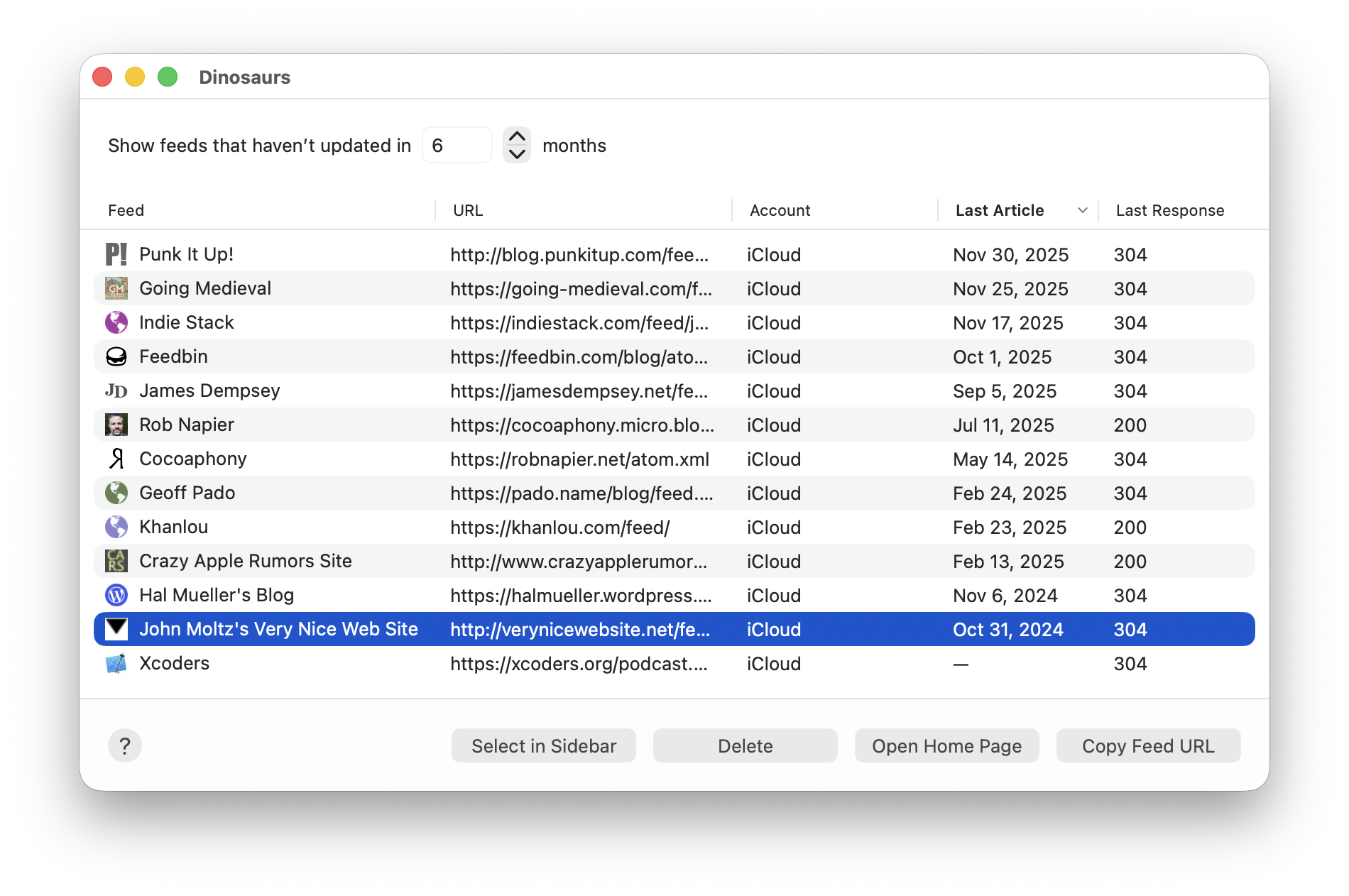
On your Mac, choose Window > Dinosaurs to open the window. You’ll see something like this:
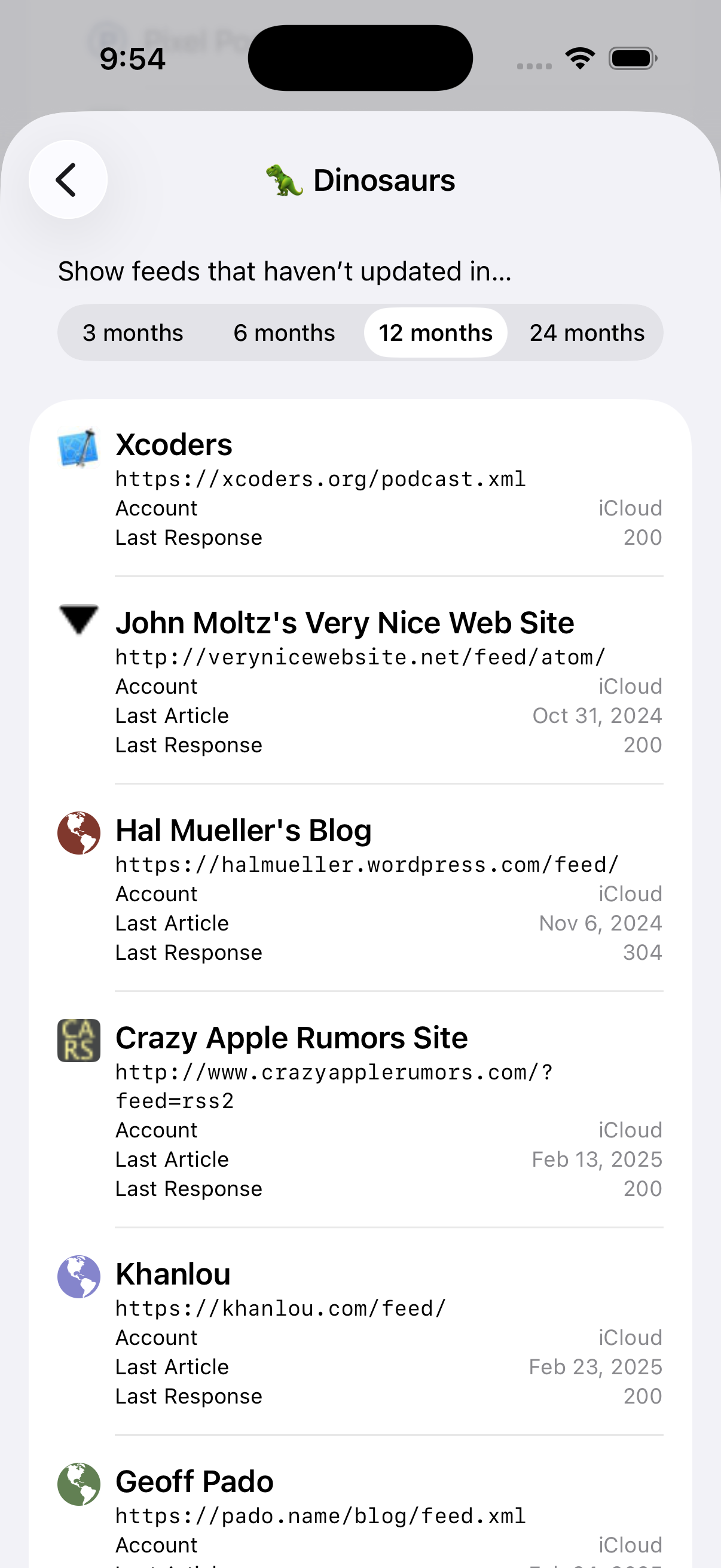
On iOS, open Settings, scroll down to Troubleshooting, then tap Dinosaurs. You’ll see something like this:
(The Dinosaurs feature was added in NetNewsWire 7.1, released in June 2026.)
How to list stale feeds
On Mac: edit the text field at the top of the window to choose a number of months. (You can also click the stepper.)
On iOS: tap in the months bar.
The default is six months, but you might want to see feeds that haven’t updated in 24 months, for instance.
The table lists feed name, feed URL, account (if you have multiple accounts), date of the last article that the app has in its database, and the last response code the app got for that feed.
In some cases there may not be a last article — this is not an error in the app. It’s just a thing that can happen.
There may also not be a last response code. (Maybe that domain doesn’t exist anymore.)
But when there is a last response code, it can be helpful. These codes are http response codes. Here’s a quick guide to what you’re likely to see:
- 200: feed exists and is responding fine
- 304: feed exists and is fine — it’s just saying there have been no changes since the last check
- 404: feed not found
- 410: feed is gone for real
However, if a feed responds with 410 it’s almost surely gone for good. This is a very deliberate choice on the part of a publisher. (And super rare.)
How to Delete a Feed
On Mac: click the Delete button to remove the selected feed or feeds.
On iOS: swipe on the feed, then click the trash button to delete the feed.
Other Actions
On Mac: see the other buttons at the bottom of the window.
On iOS: swipe to reveal the more menu — the one with the … character.
Go to Feed selects the feed in the feeds list. This way you can see what articles are included in the feed.
Open Home Page opens the home page of the feed in a web view.
Copy Feed URL copies the feed URL of the selected feed or feeds.
Also Useful
The Error Log lists errors downloading feeds, including timeouts and DNS failures and so on. This can be of further help in deciding which feeds to delete.