
How to Optimize iCloud Syncing
This page is for NetNewsWire 7.0.4 and newer. If you’re using an earlier version, see iCloud Syncing Limitations and Solutions.
iCloud syncing can be slow and your iCloud storage may be large, especially if you’ve been using NetNewsWire with iCloud syncing for a long time.
Here’s how to fix it:
Step 1. Turn off syncing of unread content
iCloud syncing stores the content of starred articles — which makes sense, because you absolutely want those to be there wherever you run NetNewsWire.
But it also stores the content of unread articles. It’s for a good reason: it ensures that none of your copies of NetNewsWire is missing an article. The problem, though, is that it also means that your iCloud storage may be high and your iCloud syncing may be slow.
In NetNewsWire 7.0.4 we added an option to turn off syncing the content of unread articles. If you’re already using iCloud syncing with NetNewsWire, the option is on, because that’s how it’s worked all this time.
But for new users the option is off by default, however, since we think it’s better to turn it off.
How to turn it off
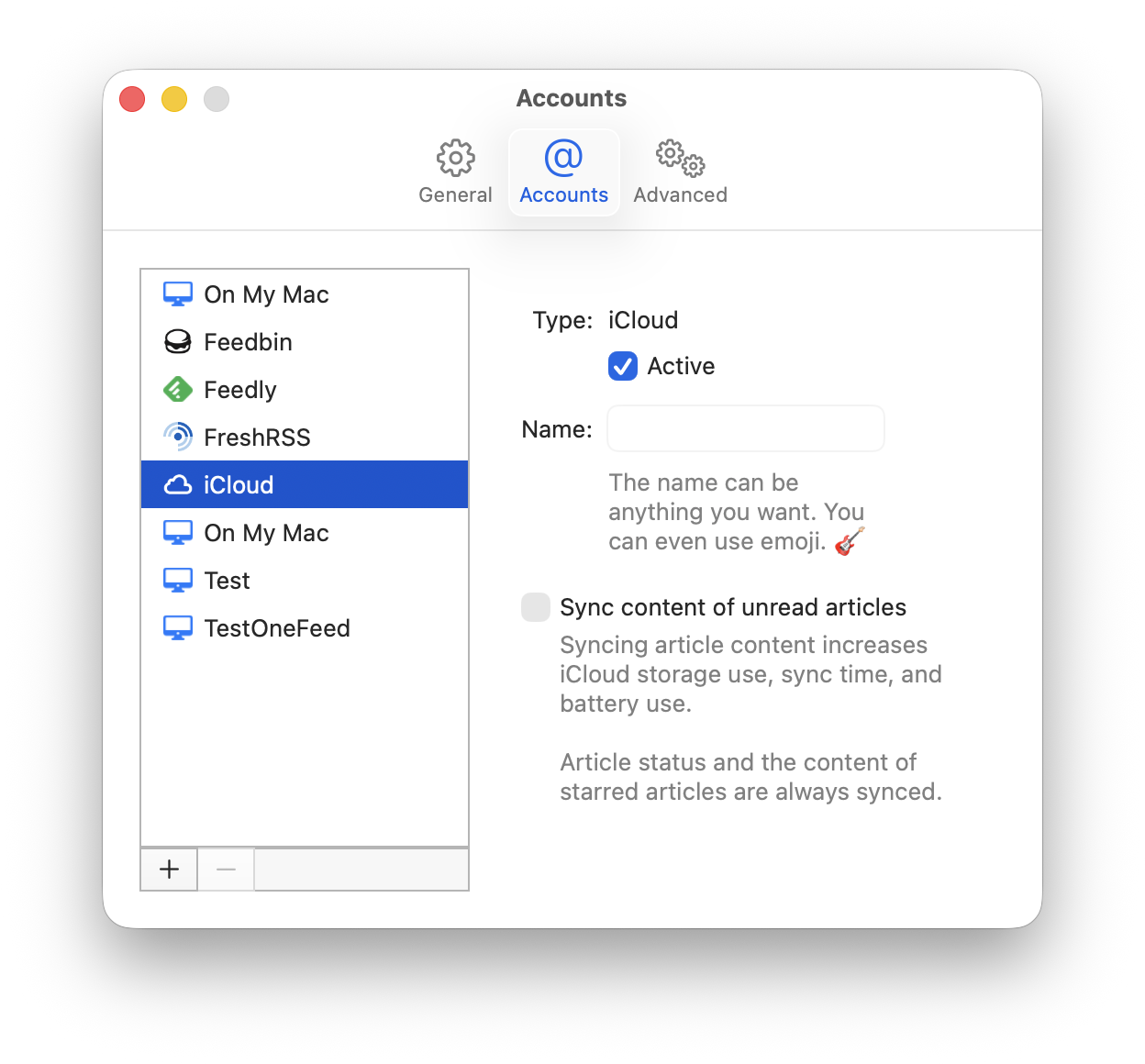
Open the Settings window on Mac and navigate to your iCloud account settings. Make sure the checkbox for “Sync content of unread articles” is off, as in the screenshot.
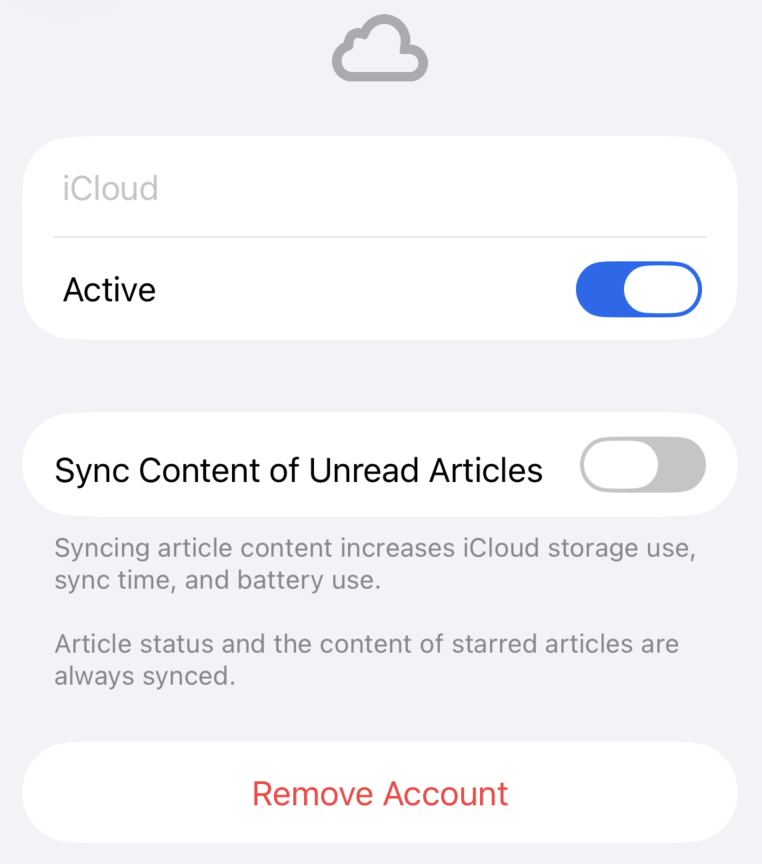
Also turn it off in your iOS device or devices. Open the settings screen in NetNewsWire, navigate to your iCloud account, and make sure the switch for “Sync Content of Unread Articles” is off, as in the screenshot.
This setting is synced between all your copies of NetNewsWire. You should have to turn it off only once. (It’s not a bad idea to check your other copies of NetNewsWire, though, to be sure.)
Step 2. Relax — NetNewsWire is doing automatic cleanups on its own now
We’ve added a new weekly background iCloud storage cleanup.
It doesn’t necessarily do a full cleanup each time — that’s because, for longtime NetNewsWire + iCloud syncing users, there’s a lot to clean up, and it’s best to spread this out so it doesn’t just hog everything while it’s running.
But longtime iCloud users should find, over time, that the cleanup has improved sync times and decreased iCloud storage.
You can stop here! You don’t have to do anything else to optimize iCloud syncing and storage, if you’re willing to let the weekly cleanup do its thing over time.
But if you’re impatient — which we totally get — you can clean it all up right now. Read on…
Step 3. Open your iCloud Storage Stats in NetNewsWire
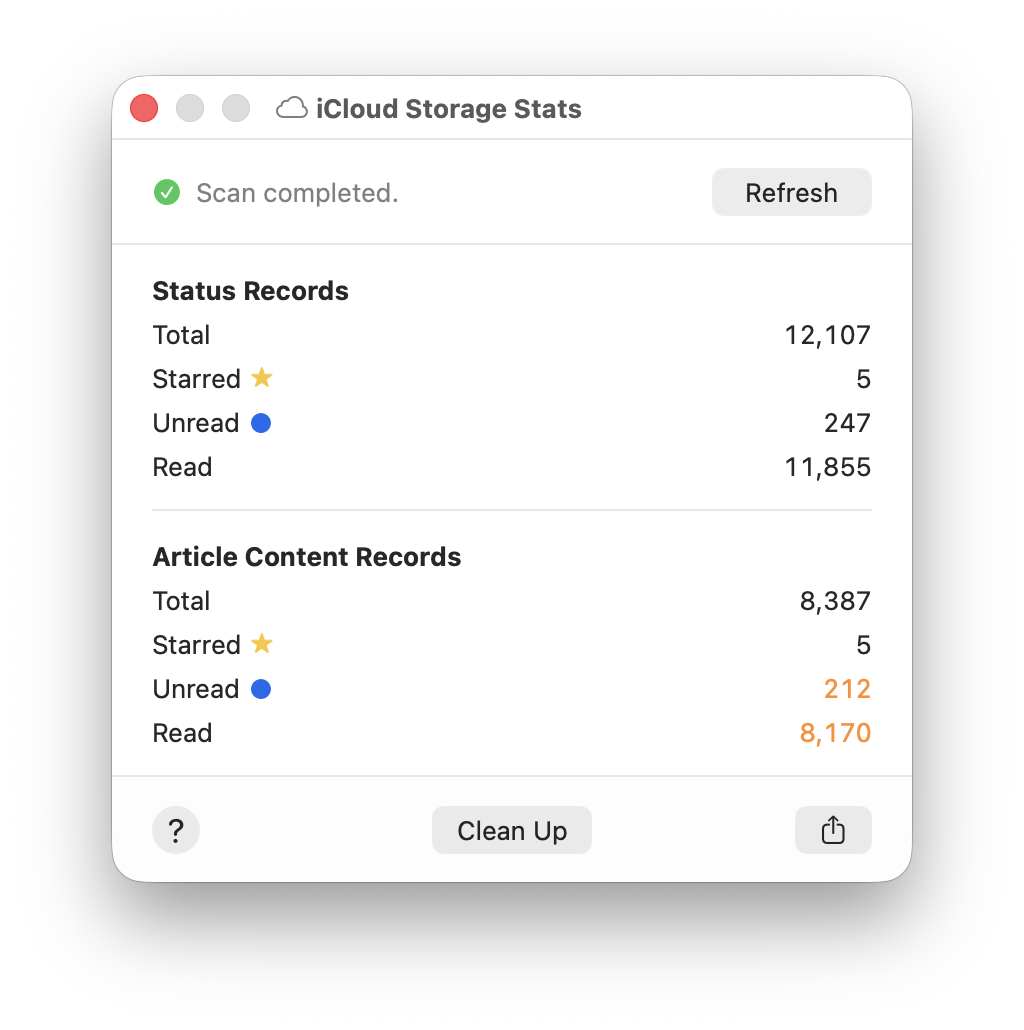
On Mac, from the Window menu, choose iCloud Storage Stats. The window will start running a scan of your iCloud storage, which may take several minutes to complete.
On iOS, open the settings screen in the app, scroll down to the Troubleshooting section, then tap on iCloud Storage Stats.
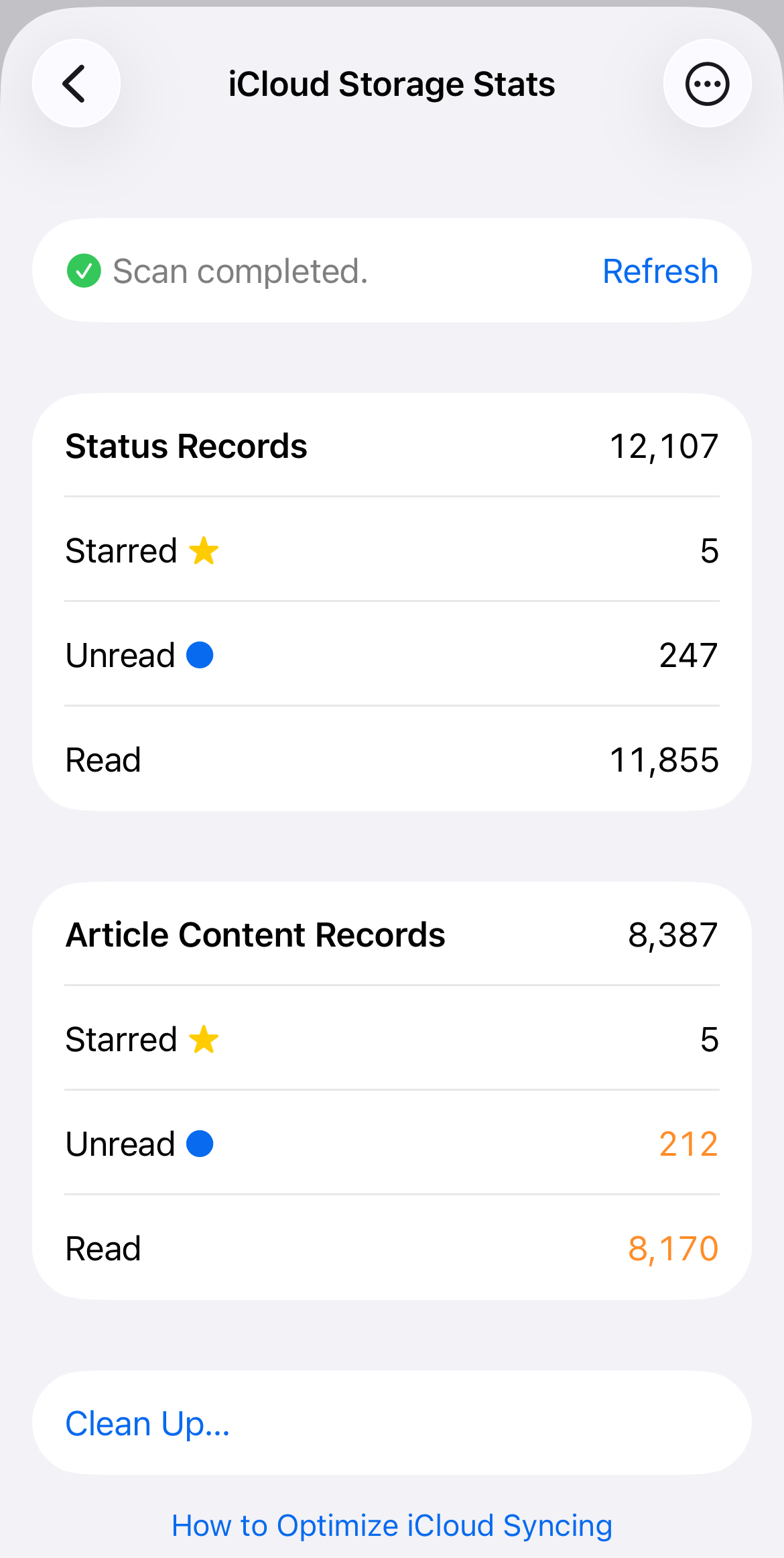
Here’s what it’s showing:
Status Records
These are quite small: just an ID and enough data to say whether an article is read or unread and starred or not. It’s okay that there are many thousands of these — that’s expected. Totally normal.
Article Content Records
These are the big ones, the actual content of each article. You want this number to be as small as possible — ideally it’s just the content of your starred articles and nothing more.
In the screenshot, you can see that there are 8,387 total articles stored, which is a lot. Just five are starred. There are 212 unread and 8,170 read.
Why so many for read articles? Don’t we not sync content for read articles?
Well, they were unread at first, and that’s why their content got uploaded to iCloud. Then at some point they were marked as read, but the article content wasn’t deleted from iCloud. (Yes, there is code to do that, but there are cases where that can be missed.)
So now you know why it’s using so much iCloud storage.
Here’s what to do about it:
Step 4. Clean up your iCloud storage
Warning: Your next syncs after cleaning up may take an extra long time! This is because iCloud syncs deletions, and doing a cleanup means doing a lot of deletions.
If you’d rather not do this all at once, you can let NetNewsWire clean up your iCloud storage automatically — it will do fewer deletions at a time and will eventually get everything cleaned up.
Click or tap the Clean Up button at the bottom. It will first confirm that you want to do the cleanup, then it will run it. This too may take several minutes to complete.
Once it’s finished, you will see something like this:
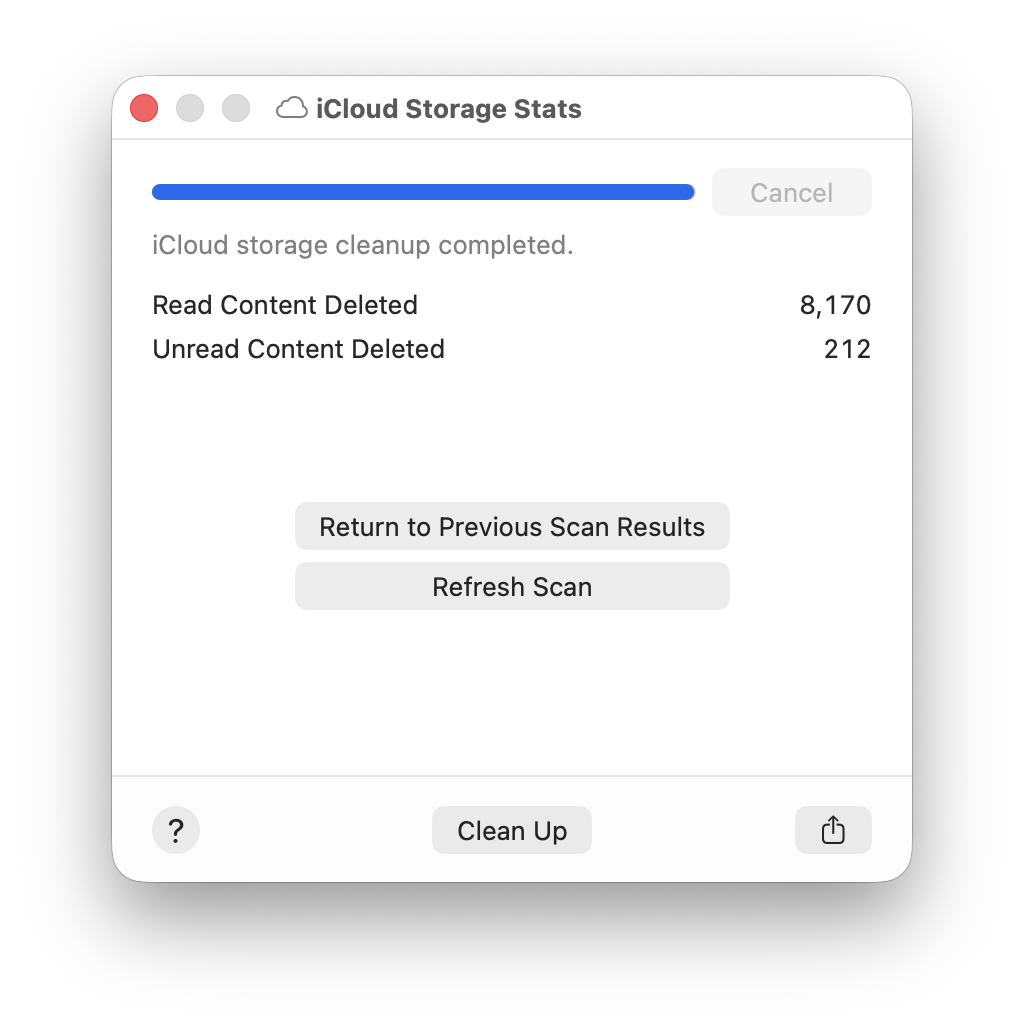
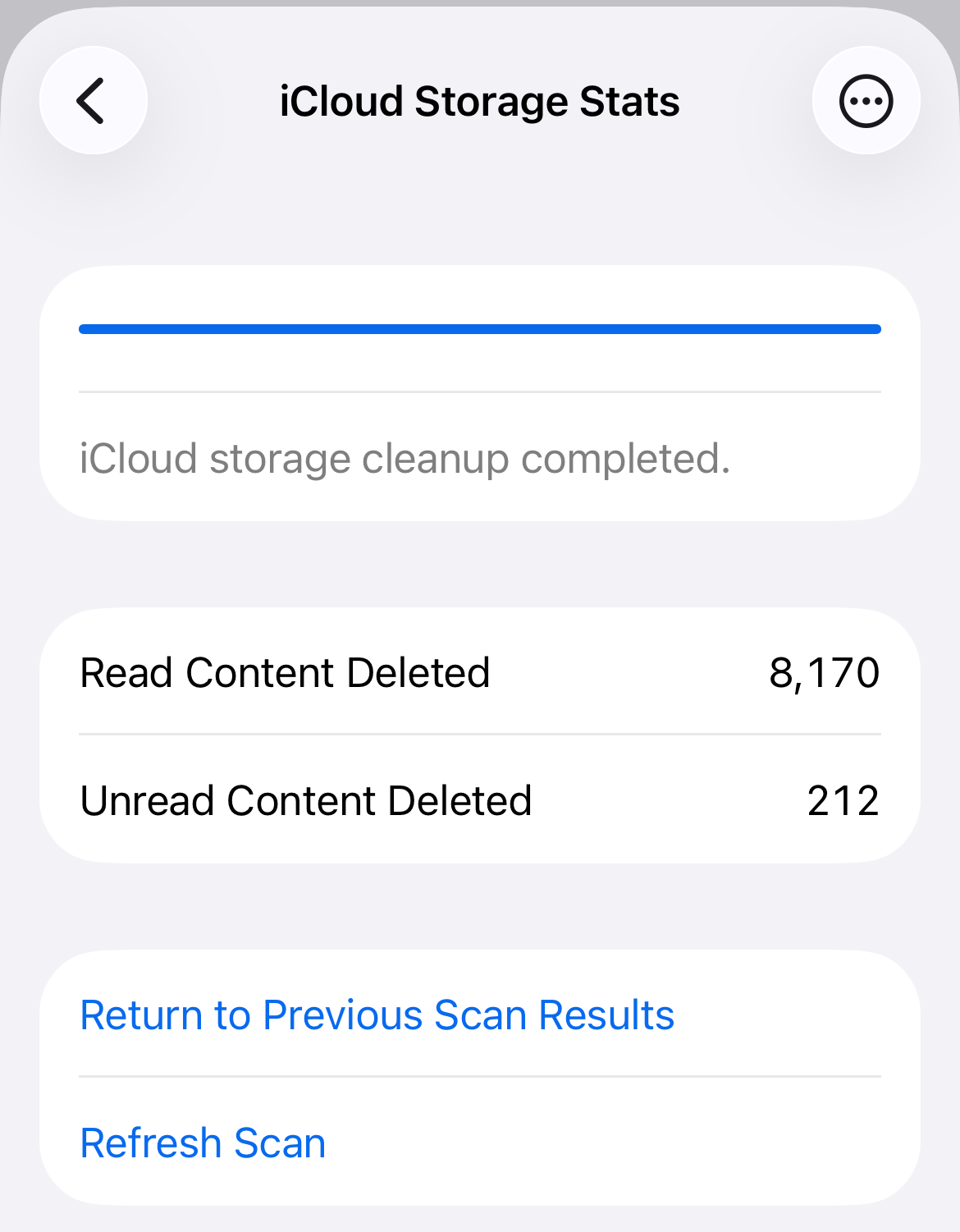
It shows you exactly how many of each category were deleted, and then gives you the option to go back to your scan or run a new scan (if you have time).
At this point you may have deleted way more than half of NetNewsWire’s iCloud storage. (It was about 90% in testing, but mileage will vary.) From here on sync times should be faster and iCloud storage needs should be lower. (Remember that NetNewsWire now does a weekly cleanup too, so it can stay on top of this.)
But you can always come back to this window and check your stats again and run a cleanup if you need to.
Note about errors
If an error is reported during a scan or cleanup, it may just be a network error or iCloud asking you to slow down. It’s okay to run the cleanup, get an error, wait a while, then run it again, until finally there’s nothing left to clean up.
If you think an error is more serious, please report it on the bug tracker or on the NetNewsWire forum. Thanks!